

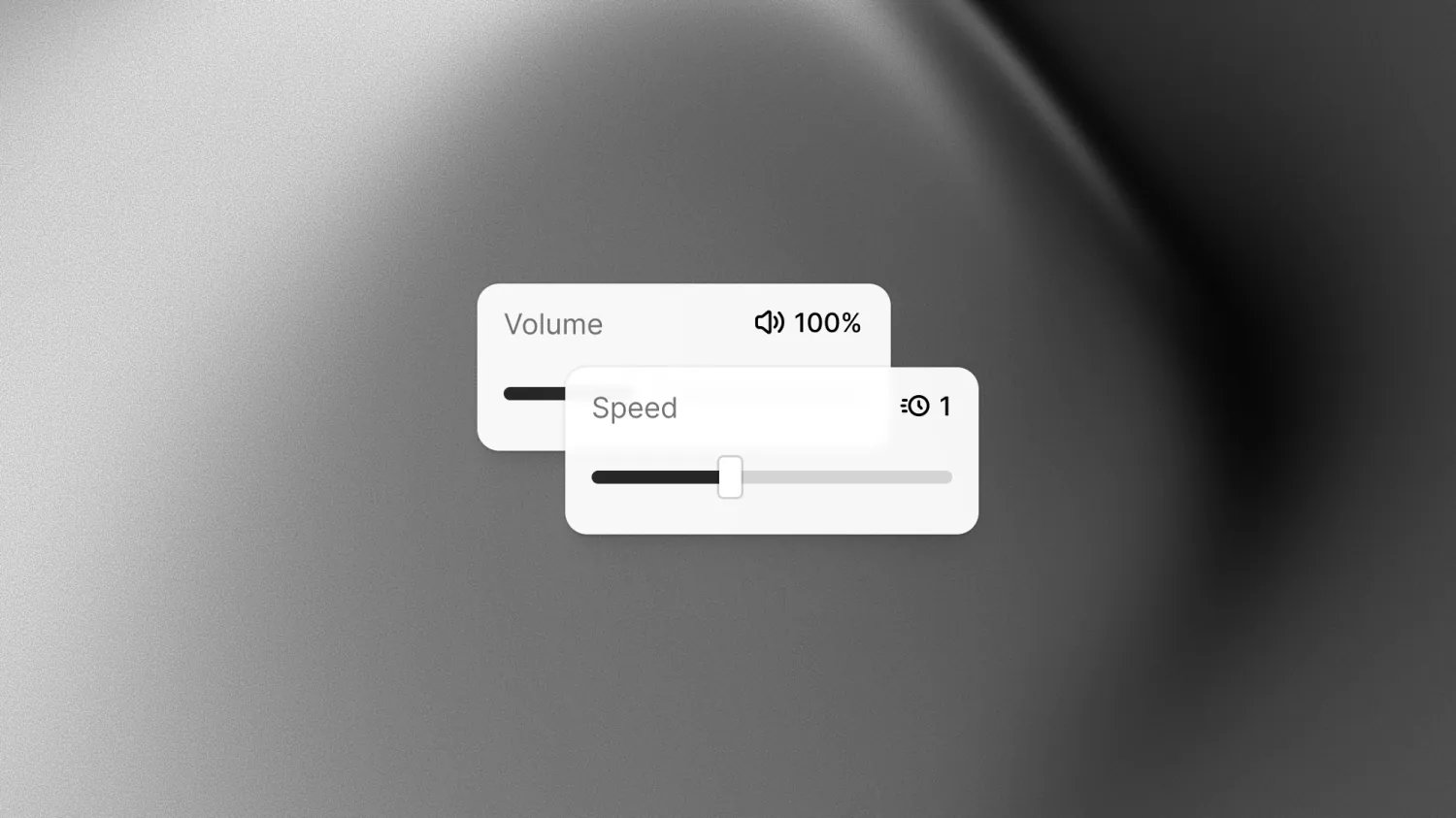
Adjust speed and volume
1
Open Steps
Open a guide and select Steps. Choose the voice you want to use in the panel footer.
2
Set the speed
Click the Speed control beside the voice picker, then move the slider to choose the pace.
The default is 1.0×.
3
Set the volume
Click the Volume control, then move the slider to choose the loudness. The default is
100%, shown as 1.0 on the button.
4
Generate and listen
Click Generate voiceover to apply the settings. Play the guide to hear the result, then
adjust and regenerate if needed.
Speed and volume are not available for every voice.
Choose your settings
Apply changes to a guide
Changing a slider does not update existing audio. Click Generate voiceover after adjusting speed or volume to create audio with the new settings. If the guide already has voice-over and you want to discard pending changes, click Reset changes in the panel footer. This restores the saved voice, speed, and volume settings. Regenerate voice-over before sharing or exporting a guide that needs the new settings.Up next
Narration
Edit transcripts, choose a voice, and generate voice-over.
Pronunciation dictionary
Help voice-over say product names, acronyms, and phrases the way you want.