

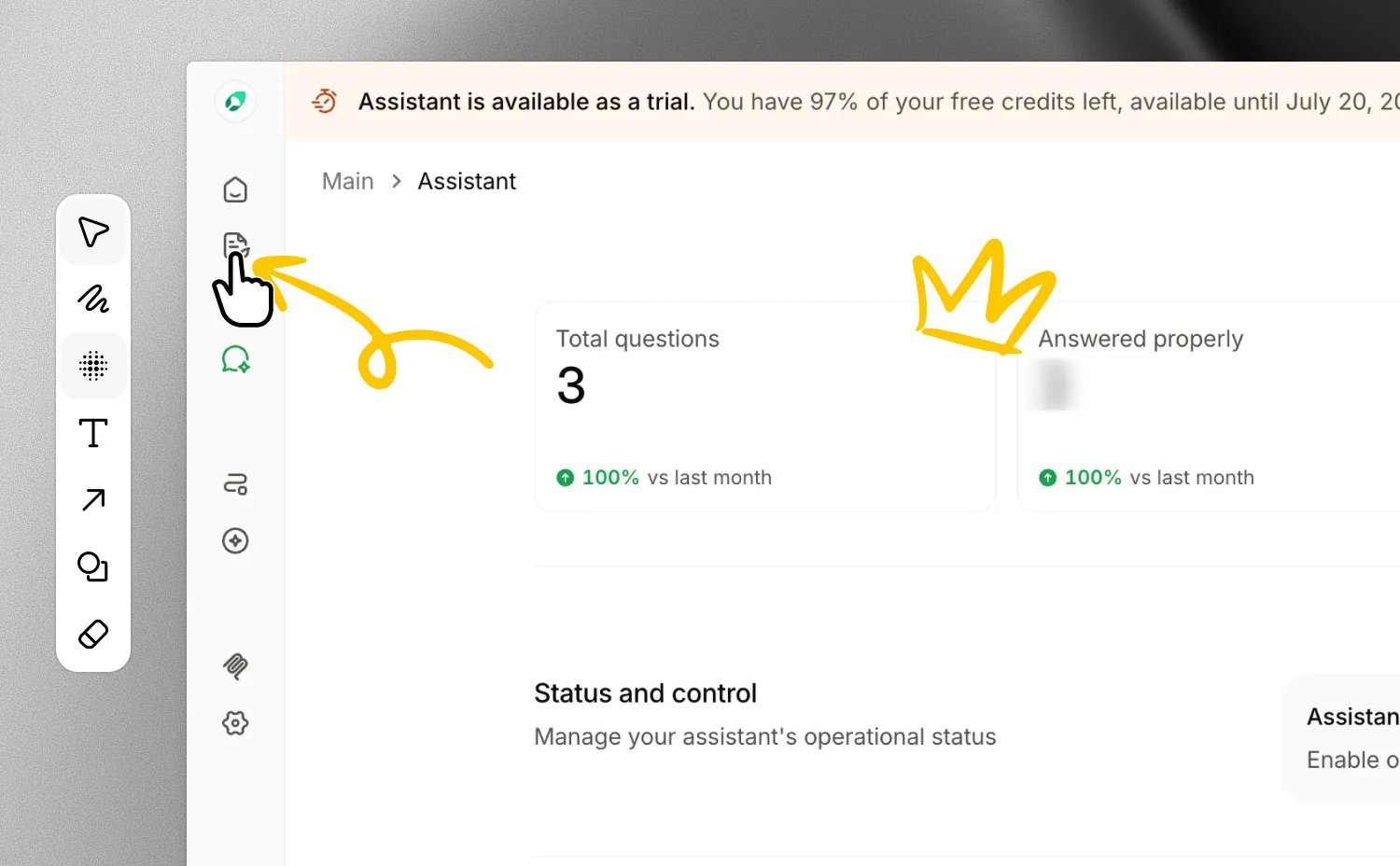
Open the image editor
- Select a step with a screenshot.
- Click Annotate below the preview.
Tools
Choose a tool from the rail on the left, or press its shortcut key.
Numbers count up automatically. If you remove one, the rest are renumbered.
Pick a color from the palette at the bottom and a stroke size from the slider on the right. Your last color is remembered for the next image.
Keyboard shortcuts
Blur the same content on other steps
The same email address or account number often appears on several steps. With Auto scan on, Guideless looks for newly blurred content on the guide’s other steps when you save, and blurs it there too. Auto scan is on by default. To change it, select Blur, then open the options tab beside it. Only blur is copied; arrows, text, and other annotations stay on their own step. After the scan, a message lists the steps that received blur. Guideless applies blur only where it is confident it found the same content, so check the other steps for anything it missed.Save or discard
Click Save changes to apply your edits. The step shows as processing for a moment. Click Cancel to leave. Guideless asks before discarding unsaved changes. Your edits stay editable. Click Annotate again at any time to move or remove blur and annotations. When you download a step from its menu, the downloaded image includes its blur and annotations.Up next
Customize the style
Adjust zoom, cursor, and highlights.
Share a guide
Send the finished guide to viewers.