> ## Documentation Index
> Fetch the complete documentation index at: https://docs.guideless.ai/llms.txt
> Use this file to discover all available pages before exploring further.
# Choose an AI voice for your guide
> Choose from a library of natural AI voices and generate professional narration in seconds.
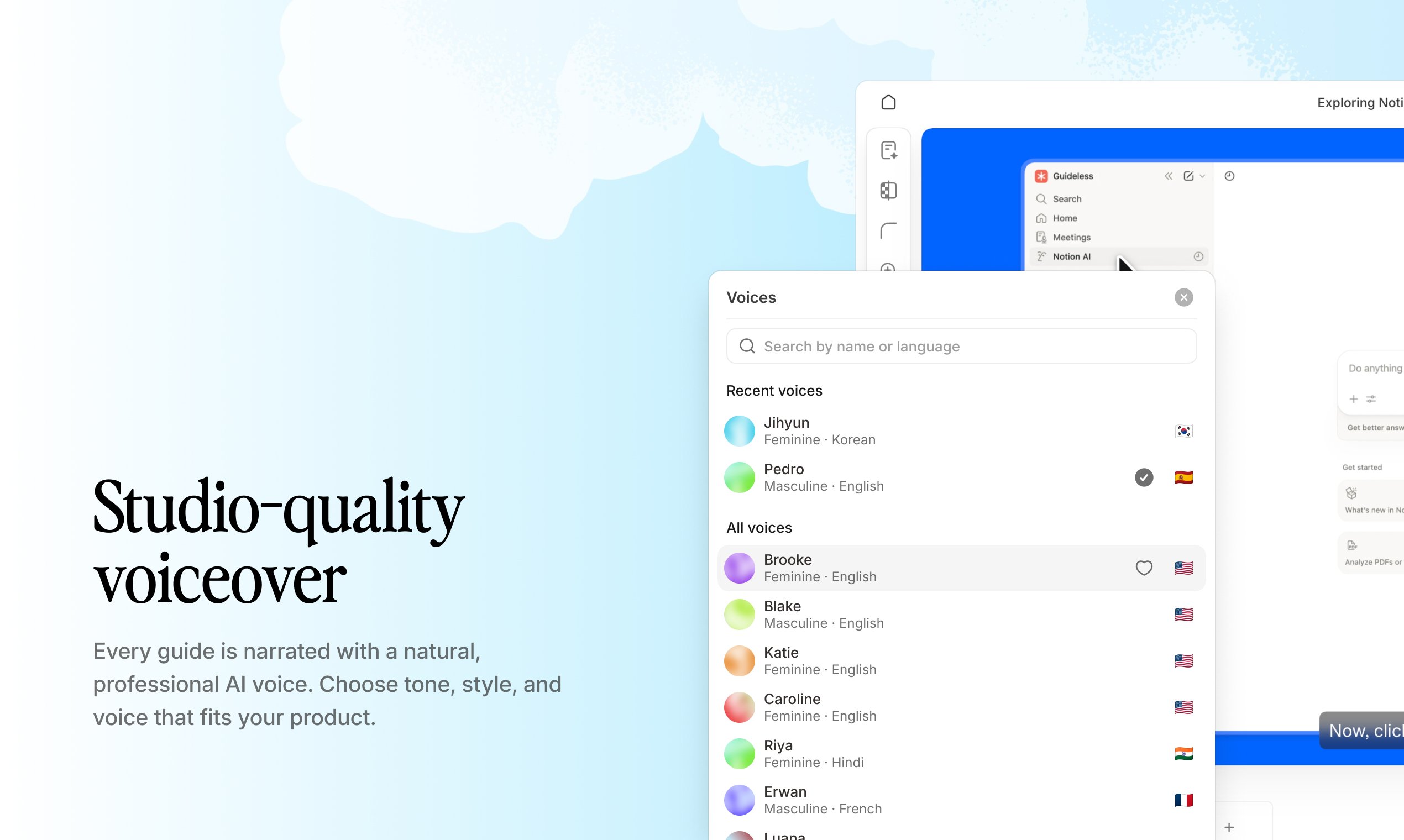 Preview voices before applying them to your guide.
## Select a voice
Open the guide in the Guideless editor and navigate to the step-by-step walkthrough you want to convert into audio.
Click the **Speech** icon in the left sidebar to open the narration panel. Guideless automatically generates a script based on your guide content.
Review the generated narration script and make any adjustments if needed before creating the voice-over.
Click the voice selector icon in the Speech panel to open the voice library.
Search voices by name or use the language and gender filters to find the voice that best matches your guide.
Click on a voice to preview it, then choose the one you want to use for your guide narration.
Click **Generate voiceover** to create audio for your guide. Guideless converts the narration script into spoken audio and synchronizes it with the guide steps.
Preview a few voices before generating audio. Different voices vary in tone, pace, and style, so the best choice depends on your audience and guide type.
## Available voices
Choose from a growing library of AI voices across 40+ languages to create guides for global teams and customers.
You can change the voice at any time. Regenerate the voice-over and all future viewers will hear the updated narration.
## Refine Speech
Fine-tune AI-generated narration by controlling pronunciation and speech delivery without recording new audio.
Define how product names, acronyms, and technical terms should be pronounced.
Apply pronunciation updates and create an improved voice-over in seconds without recording new audio.
Define pronunciation rules once and generate professional voice-overs with accurate terminology every time.
Preview voices before applying them to your guide.
## Select a voice
Open the guide in the Guideless editor and navigate to the step-by-step walkthrough you want to convert into audio.
Click the **Speech** icon in the left sidebar to open the narration panel. Guideless automatically generates a script based on your guide content.
Review the generated narration script and make any adjustments if needed before creating the voice-over.
Click the voice selector icon in the Speech panel to open the voice library.
Search voices by name or use the language and gender filters to find the voice that best matches your guide.
Click on a voice to preview it, then choose the one you want to use for your guide narration.
Click **Generate voiceover** to create audio for your guide. Guideless converts the narration script into spoken audio and synchronizes it with the guide steps.
Preview a few voices before generating audio. Different voices vary in tone, pace, and style, so the best choice depends on your audience and guide type.
## Available voices
Choose from a growing library of AI voices across 40+ languages to create guides for global teams and customers.
You can change the voice at any time. Regenerate the voice-over and all future viewers will hear the updated narration.
## Refine Speech
Fine-tune AI-generated narration by controlling pronunciation and speech delivery without recording new audio.
Define how product names, acronyms, and technical terms should be pronounced.
Apply pronunciation updates and create an improved voice-over in seconds without recording new audio.
Define pronunciation rules once and generate professional voice-overs with accurate terminology every time.