> ## Documentation Index
> Fetch the complete documentation index at: https://docs.guideless.ai/llms.txt
> Use this file to discover all available pages before exploring further.
# Speed and volume
> Adjust the pace and loudness of your guide’s voice-over.
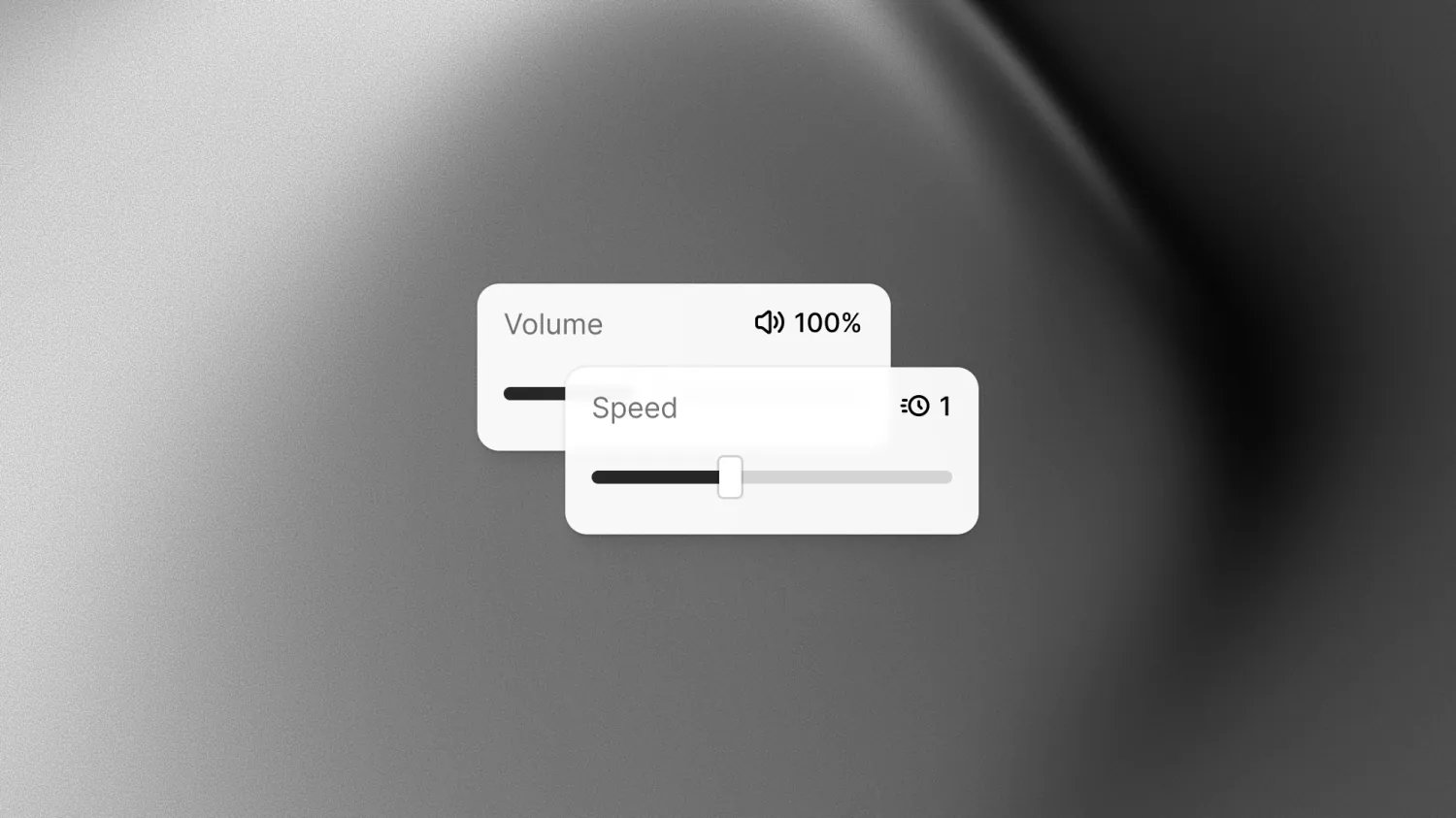
Use **Speed** and **Volume** in the **Steps** panel to shape how your guide sounds. Slow down narration for detailed instructions, pick up the pace for a quick walkthrough, or adjust the loudness.
 ## Adjust speed and volume
Open a guide and select **Steps**. Choose the voice you want to use in the panel footer.
Click the **Speed** control beside the voice picker, then move the slider to choose the pace.
The default is **1.0×**.
Click the **Volume** control, then move the slider to choose the loudness. The default is
**100%**, shown as **1.0** on the button.
Click **Generate voiceover** to apply the settings. Play the guide to hear the result, then
adjust and regenerate if needed.
Speed and volume are not available for every voice.
## Choose your settings
| Setting | Range | Default | When to adjust it |
| ------- | ------------------------------ | ------- | -------------------------------------------------------------------------------------------------- |
| Speed | 0.6× to 1.5×, in steps of 0.1× | 1.0× | Use a lower value to give viewers more time to follow, or a higher value for a faster walkthrough. |
| Volume | 50% to 200%, in steps of 10% | 100% | Use a lower value for quieter narration or a higher value for louder narration. |
## Apply changes to a guide
Changing a slider does not update existing audio. Click **Generate voiceover** after adjusting speed or volume to create audio with the new settings.
If the guide already has voice-over and you want to discard pending changes, click **Reset changes** in the panel footer. This restores the saved voice, speed, and volume settings.
Regenerate voice-over before sharing or exporting a guide that needs the new settings.
## Up next
Edit transcripts, choose a voice, and generate voice-over.
Help voice-over say product names, acronyms, and phrases the way you want.
## Adjust speed and volume
Open a guide and select **Steps**. Choose the voice you want to use in the panel footer.
Click the **Speed** control beside the voice picker, then move the slider to choose the pace.
The default is **1.0×**.
Click the **Volume** control, then move the slider to choose the loudness. The default is
**100%**, shown as **1.0** on the button.
Click **Generate voiceover** to apply the settings. Play the guide to hear the result, then
adjust and regenerate if needed.
Speed and volume are not available for every voice.
## Choose your settings
| Setting | Range | Default | When to adjust it |
| ------- | ------------------------------ | ------- | -------------------------------------------------------------------------------------------------- |
| Speed | 0.6× to 1.5×, in steps of 0.1× | 1.0× | Use a lower value to give viewers more time to follow, or a higher value for a faster walkthrough. |
| Volume | 50% to 200%, in steps of 10% | 100% | Use a lower value for quieter narration or a higher value for louder narration. |
## Apply changes to a guide
Changing a slider does not update existing audio. Click **Generate voiceover** after adjusting speed or volume to create audio with the new settings.
If the guide already has voice-over and you want to discard pending changes, click **Reset changes** in the panel footer. This restores the saved voice, speed, and volume settings.
Regenerate voice-over before sharing or exporting a guide that needs the new settings.
## Up next
Edit transcripts, choose a voice, and generate voice-over.
Help voice-over say product names, acronyms, and phrases the way you want.