> ## Documentation Index
> Fetch the complete documentation index at: https://docs.guideless.ai/llms.txt
> Use this file to discover all available pages before exploring further.
# Edit your script, zooms, and AI narration
> Refine the generated narration, adjust zooms and timing, and choose a voice for your guide.
## Shape the step list
Move steps into the order that tells the clearest story.
Remove anything redundant, unnecessary, or off-topic.
Create a copy of any step and modify it as needed.
Refine AI-generated text to match your guide.
Add labels, arrows, and highlights to guide attention.
Hide sensitive information before publishing your guide.
## Edit the narration script
Guideless automatically generates a narration script from your recorded steps. No writing required.
* Click any line to edit it directly
* Rewrite as little or as much as you want
* Changes are applied the next time you generate the voiceover
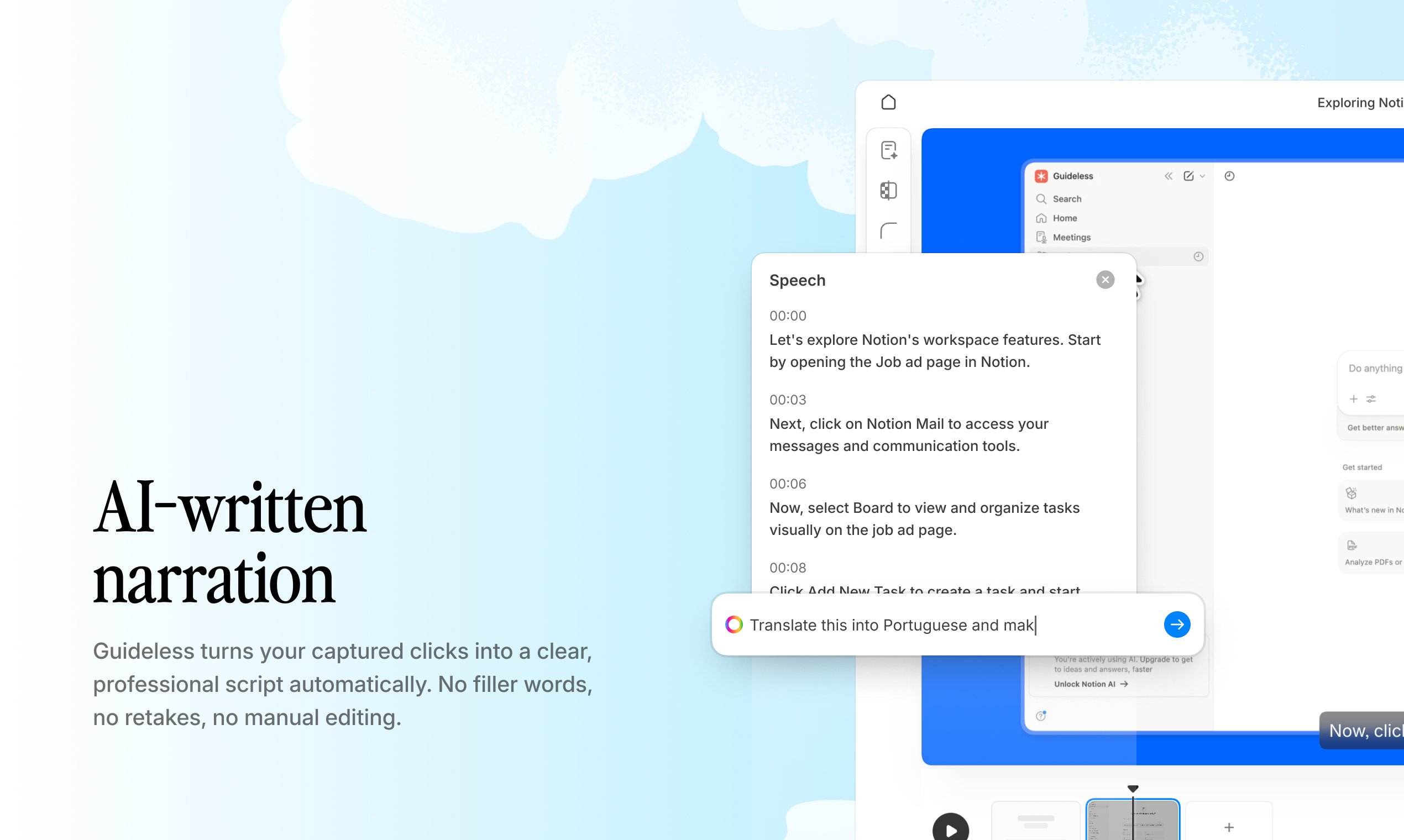 Keep narration concise. One action per sentence. Short lines are easier to follow when spoken aloud.
After editing, click **Generate voiceover** to refresh the audio. The previous take is replaced automatically.
## Pick a voice
Open the **Speech** panel to preview and apply AI voices in seconds. Guideless supports 40+ languages, so you can localize guides without re-recording your screen capture.
You can switch the voice and regenerate at any time, even after the guide is live. Viewers always hear the latest version.
## Polish the guide experience
Before publishing, refine both the visual and narration experience of your guide.
* Adjust **Smart Zooms** to focus on important actions
* Choose **cursor** styles that match different workflows
* Resize the **cursor** for better visibility
* Review and refine the narration before generating audio
## Up next
Explore voices across 40+ languages and find the right fit for your guides.
Keep narration concise. One action per sentence. Short lines are easier to follow when spoken aloud.
After editing, click **Generate voiceover** to refresh the audio. The previous take is replaced automatically.
## Pick a voice
Open the **Speech** panel to preview and apply AI voices in seconds. Guideless supports 40+ languages, so you can localize guides without re-recording your screen capture.
You can switch the voice and regenerate at any time, even after the guide is live. Viewers always hear the latest version.
## Polish the guide experience
Before publishing, refine both the visual and narration experience of your guide.
* Adjust **Smart Zooms** to focus on important actions
* Choose **cursor** styles that match different workflows
* Resize the **cursor** for better visibility
* Review and refine the narration before generating audio
## Up next
Explore voices across 40+ languages and find the right fit for your guides.