> ## Documentation Index
> Fetch the complete documentation index at: https://docs.guideless.ai/llms.txt
> Use this file to discover all available pages before exploring further.
# Customize the look of every guide
> Adjust colors, backgrounds, cursors, callouts, and blur effects to create guides that look polished and are easy to follow.
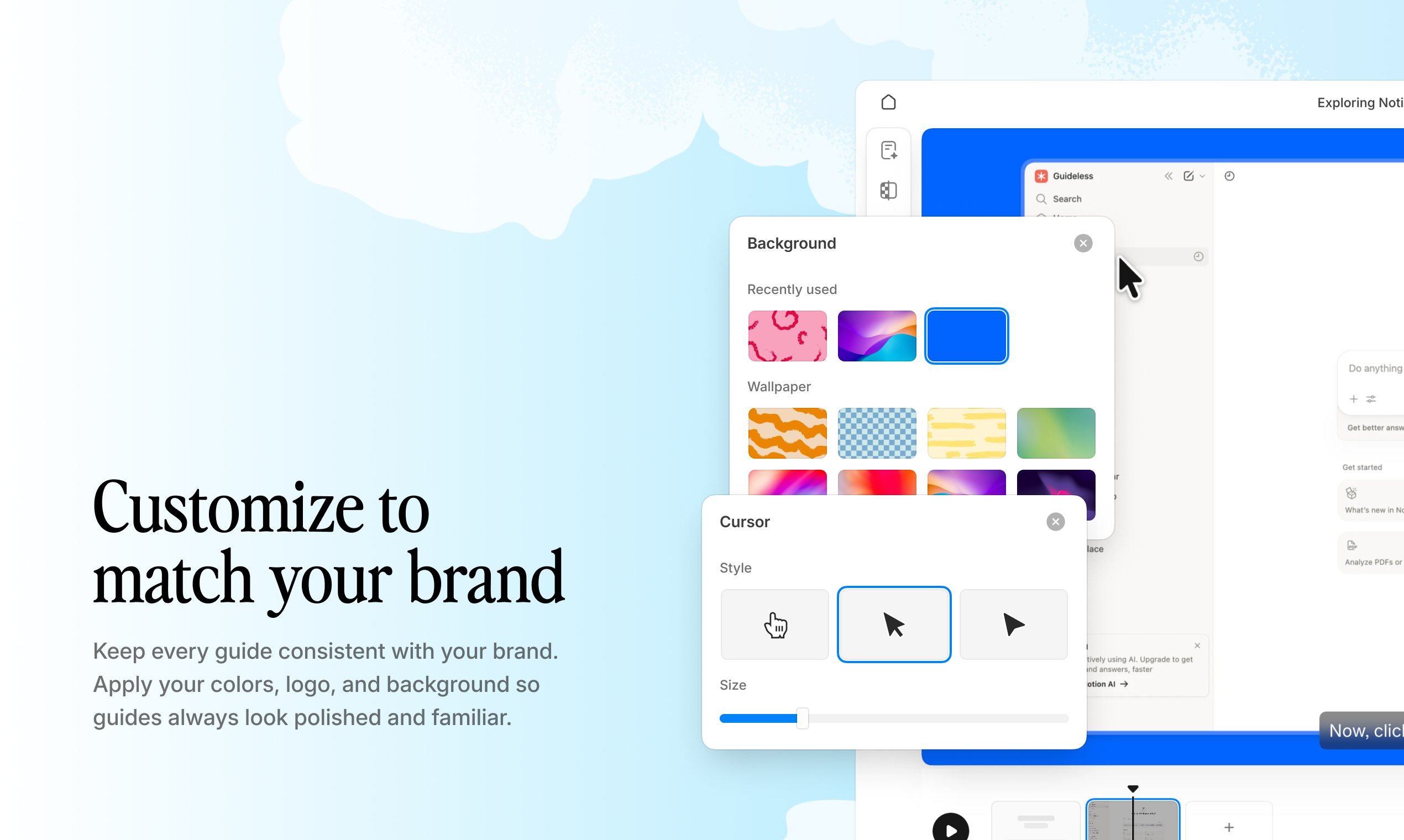 ## What you can customize
Choose backgrounds that make your guides look polished and professional.
Match colors and accents to create a consistent look across your guides.
Add pointers, highlights, labels, and visual cues to guide attention.
Blur sensitive information before sharing your guide with others.
## Set it up
Select any guide from your dashboard.
Use the left sidebar to pick backgrounds, borders, or cursor styles.
Adjust colors, shapes, and visual settings.
See updates instantly in the editor.
Your guide is updated automatically.
Consistent branding is recognition. Whether the viewer hits an internal SOP or a public help article, the experience feels like one product.
Branding works on Free and Pro. The Free plan adds a small Guideless watermark. Upgrade to remove it. See [pricing](/plans).
## Up next
Edit the script, adjust smart zooms, and choose a voice.
## What you can customize
Choose backgrounds that make your guides look polished and professional.
Match colors and accents to create a consistent look across your guides.
Add pointers, highlights, labels, and visual cues to guide attention.
Blur sensitive information before sharing your guide with others.
## Set it up
Select any guide from your dashboard.
Use the left sidebar to pick backgrounds, borders, or cursor styles.
Adjust colors, shapes, and visual settings.
See updates instantly in the editor.
Your guide is updated automatically.
Consistent branding is recognition. Whether the viewer hits an internal SOP or a public help article, the experience feels like one product.
Branding works on Free and Pro. The Free plan adds a small Guideless watermark. Upgrade to remove it. See [pricing](/plans).
## Up next
Edit the script, adjust smart zooms, and choose a voice.