> ## Documentation Index
> Fetch the complete documentation index at: https://docs.guideless.ai/llms.txt
> Use this file to discover all available pages before exploring further.
# Annotate
> Hide private details and highlight what matters in each screenshot.
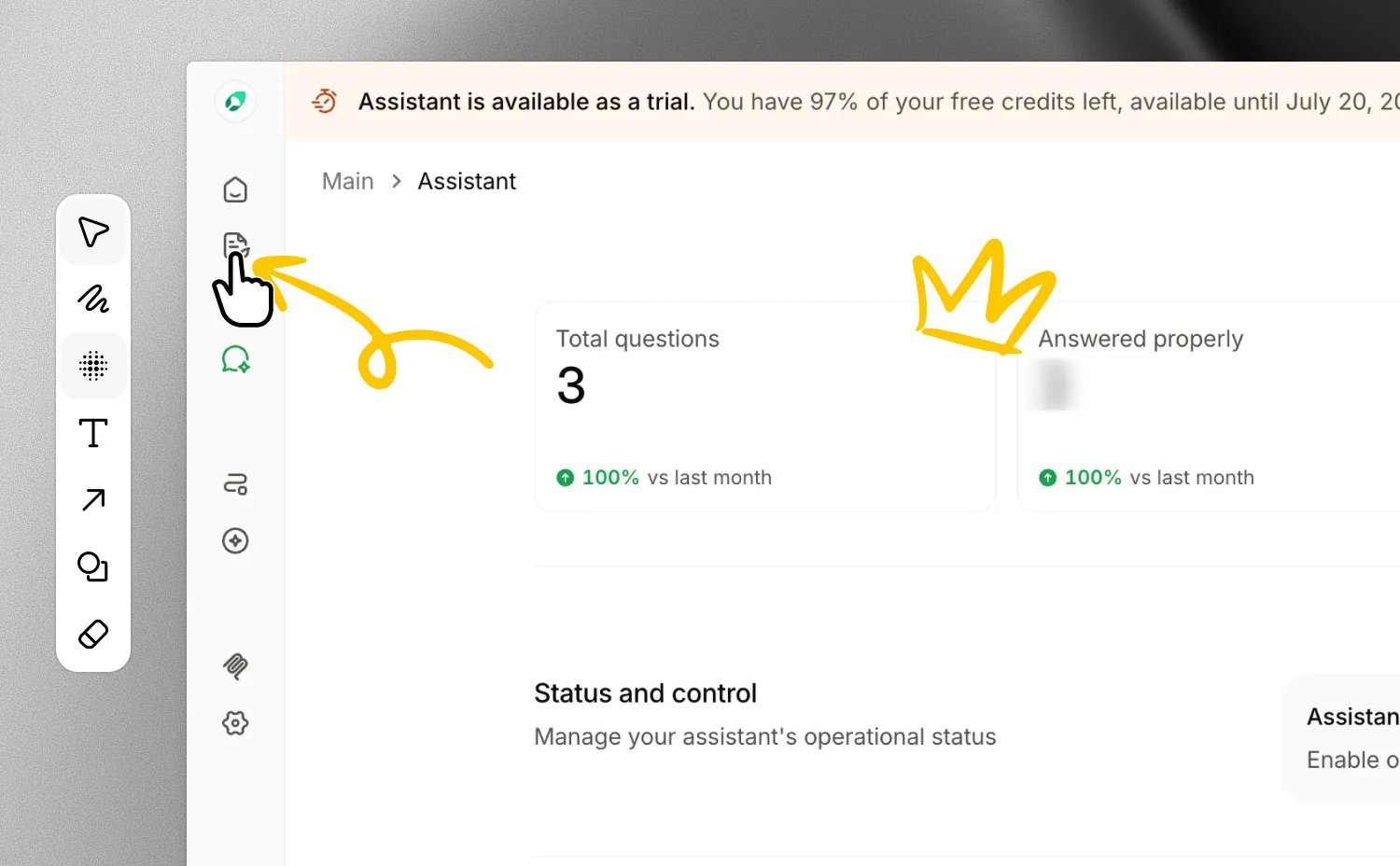
Use the image editor to hide private details in a screenshot or point viewers to what matters.
 ## Open the image editor
1. Select a step with a screenshot.
2. Click **Annotate** below the preview.
Section slides have no screenshot, so they cannot be annotated.
## Tools
Choose a tool from the rail on the left, or press its shortcut key.
| Tool | Shortcut | What it does |
| --------- | -------- | -------------------------------------------------------------------------------- |
| Select | `V` | Select, move, or resize items you have added. |
| Draw | `D` | Draw freehand. |
| Blur | `B` | Drag over an area to blur it. |
| Text | `T` | Click to add a label. |
| Arrow | `A` | Drag to point at something. |
| Rectangle | `R` | Drag to outline an area. |
| More | — | Line (`L`), circle (`O`), diamond, star, heart, numbers (`N`), and marker (`M`). |
| Erase | `E` | Brush over items to remove them. |
Numbers count up automatically. If you remove one, the rest are renumbered.
Pick a color from the palette at the bottom and a stroke size from the slider on the right. Your last color is remembered for the next image.
## Keyboard shortcuts
| Action | Mac | Windows |
| ----------------------- | ----------------------- | ----------------------- |
| Undo | `⌘Z` | `Ctrl+Z` |
| Redo | `⇧⌘Z` | `Ctrl+Y` |
| Duplicate selected item | `⌘D` | `Ctrl+D` |
| Delete selected item | `Delete` or `Backspace` | `Delete` or `Backspace` |
| Back to Select | `Esc` | `Esc` |
## Blur the same content on other steps
The same email address or account number often appears on several steps. With **Auto scan** on, Guideless looks for newly blurred content on the guide's other steps when you save, and blurs it there too.
Auto scan is on by default. To change it, select **Blur**, then open the options tab beside it. Only blur is copied; arrows, text, and other annotations stay on their own step.
After the scan, a message lists the steps that received blur. Guideless applies blur only where it is confident it found the same content, so check the other steps for anything it missed.
## Save or discard
Click **Save changes** to apply your edits. The step shows as processing for a moment. Click **Cancel** to leave. Guideless asks before discarding unsaved changes.
Your edits stay editable. Click **Annotate** again at any time to move or remove blur and annotations.
When you download a step from its menu, the downloaded image includes its blur and annotations.
## Up next
Adjust zoom, cursor, and highlights.
Send the finished guide to viewers.
## Open the image editor
1. Select a step with a screenshot.
2. Click **Annotate** below the preview.
Section slides have no screenshot, so they cannot be annotated.
## Tools
Choose a tool from the rail on the left, or press its shortcut key.
| Tool | Shortcut | What it does |
| --------- | -------- | -------------------------------------------------------------------------------- |
| Select | `V` | Select, move, or resize items you have added. |
| Draw | `D` | Draw freehand. |
| Blur | `B` | Drag over an area to blur it. |
| Text | `T` | Click to add a label. |
| Arrow | `A` | Drag to point at something. |
| Rectangle | `R` | Drag to outline an area. |
| More | — | Line (`L`), circle (`O`), diamond, star, heart, numbers (`N`), and marker (`M`). |
| Erase | `E` | Brush over items to remove them. |
Numbers count up automatically. If you remove one, the rest are renumbered.
Pick a color from the palette at the bottom and a stroke size from the slider on the right. Your last color is remembered for the next image.
## Keyboard shortcuts
| Action | Mac | Windows |
| ----------------------- | ----------------------- | ----------------------- |
| Undo | `⌘Z` | `Ctrl+Z` |
| Redo | `⇧⌘Z` | `Ctrl+Y` |
| Duplicate selected item | `⌘D` | `Ctrl+D` |
| Delete selected item | `Delete` or `Backspace` | `Delete` or `Backspace` |
| Back to Select | `Esc` | `Esc` |
## Blur the same content on other steps
The same email address or account number often appears on several steps. With **Auto scan** on, Guideless looks for newly blurred content on the guide's other steps when you save, and blurs it there too.
Auto scan is on by default. To change it, select **Blur**, then open the options tab beside it. Only blur is copied; arrows, text, and other annotations stay on their own step.
After the scan, a message lists the steps that received blur. Guideless applies blur only where it is confident it found the same content, so check the other steps for anything it missed.
## Save or discard
Click **Save changes** to apply your edits. The step shows as processing for a moment. Click **Cancel** to leave. Guideless asks before discarding unsaved changes.
Your edits stay editable. Click **Annotate** again at any time to move or remove blur and annotations.
When you download a step from its menu, the downloaded image includes its blur and annotations.
## Up next
Adjust zoom, cursor, and highlights.
Send the finished guide to viewers.