> ## Documentation Index
> Fetch the complete documentation index at: https://docs.guideless.ai/llms.txt
> Use this file to discover all available pages before exploring further.
# Pronunciation dictionary
> Help voice-over say product names, acronyms, and phrases the way you want.
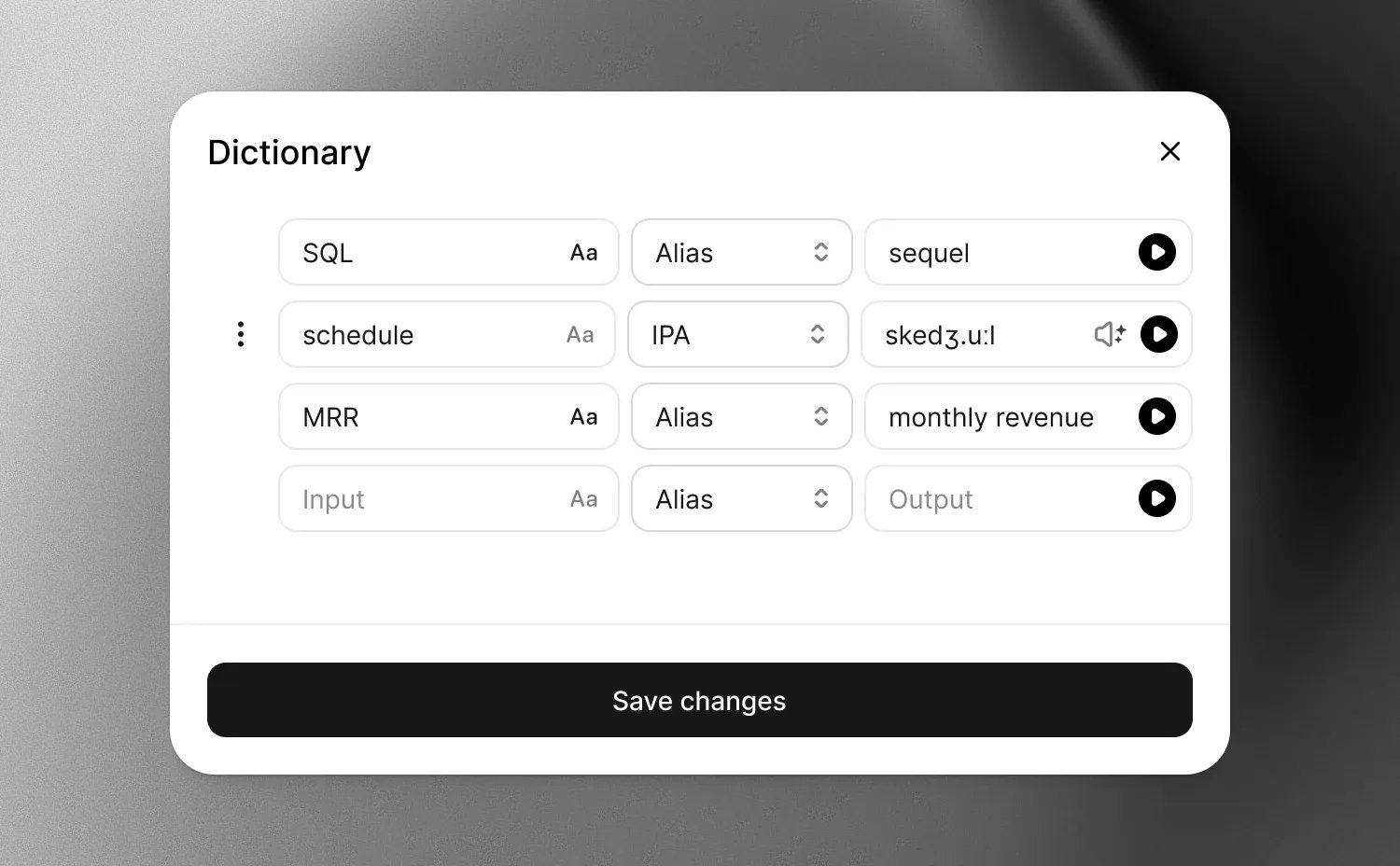
Use **Dictionary** when a voice needs help with a product name, acronym, or phrase. Save how it should sound once, then use it across guides in your workspace.
Dictionary entries change the spoken audio. Your transcripts and captions keep the original wording.
 ## Add a pronunciation
Open a guide and select **Steps**. Choose the voice you want to use, then click the
**Dictionary** book button in the panel footer.
Type the text as it appears in your transcript into **Input**. A new blank row appears as you
fill in an entry.
Select **Alias** for an alternative spelling or **IPA phoneme** for phonetic notation, then fill
in **Output**.
Click the play button beside **Output** to hear the entry with your selected voice. Adjust it if
needed, then click **Save changes**.
Each workspace has one shared dictionary, with room for up to 500 entries.
## Choose Alias or IPA
| Type | What you enter | When to use it |
| ----------- | -------------------------------------------------------------------------------- | ----------------------------------------------------- |
| Alias | Words or a spelling the voice can read, such as `single sign on` for `SSO`. | Expand acronyms or try a simpler spelling for a name. |
| IPA phoneme | Sounds written in the International Phonetic Alphabet, such as `rɛd` for `read`. | Specify a pronunciation more precisely. |
Start with **Alias** when a spelling change is enough. Use **IPA phoneme** when you need more control over the sounds or stress.
For IPA, enter the symbols directly, without surrounding slashes or brackets. Separate words with spaces.
### Describe how it sounds
You do not need to write IPA yourself. Select **IPA phoneme**, then click **Describe how it sounds** beside **Output**.
Describe the pronunciation in plain language. For example, for `read`, enter “Sounds like red, rhymes with bed.” You can also describe syllables, stress, or an accent.
Guideless fills in the IPA pronunciation. Play the preview and adjust the description if the result needs another pass. Click **Save changes** when it sounds right.
Preview with the voice you will use for the guide. The same pronunciation can sound different with
another voice or language.
## Control which text matches
Entries match whole words or phrases, so a rule for `app` does not change `application`.
Matching ignores capitalization by default. Turn on **Case sensitive** beside **Input** when capitalization matters. For example, a rule for `US` can apply to the acronym without changing `us` in a sentence.
If entries overlap, the longest matching phrase takes priority. A rule for `Guideless AI` takes priority over a rule for `Guideless` at the same place in the transcript.
Each rule applies wherever its text matches. If the same word needs different pronunciations in different sentences, use a longer phrase as the input to make the rule more specific.
## Update or remove an entry
Open **Dictionary** again to edit an entry. To remove one, open its **Rule actions** menu and choose **Delete rule**, then click **Save changes**.
If you close the dictionary with unsaved edits, choose **Keep editing** to return to the draft or **Discard changes** to close without saving.
If saving reports that the dictionary changed, another editing session has saved a newer version. Copy any draft changes you want to keep, then close and reopen the dictionary before editing again.
## Apply changes to a guide
After saving, click **Generate voiceover** in **Steps** to use the updated dictionary.
Saving a dictionary does not change existing audio or generation already in progress. Regenerate voice-over in each guide that needs the new pronunciation before sharing or exporting it.
## Up next
Edit transcripts, choose a voice, and generate voice-over.
Publish the guide with a link or embed.
## Add a pronunciation
Open a guide and select **Steps**. Choose the voice you want to use, then click the
**Dictionary** book button in the panel footer.
Type the text as it appears in your transcript into **Input**. A new blank row appears as you
fill in an entry.
Select **Alias** for an alternative spelling or **IPA phoneme** for phonetic notation, then fill
in **Output**.
Click the play button beside **Output** to hear the entry with your selected voice. Adjust it if
needed, then click **Save changes**.
Each workspace has one shared dictionary, with room for up to 500 entries.
## Choose Alias or IPA
| Type | What you enter | When to use it |
| ----------- | -------------------------------------------------------------------------------- | ----------------------------------------------------- |
| Alias | Words or a spelling the voice can read, such as `single sign on` for `SSO`. | Expand acronyms or try a simpler spelling for a name. |
| IPA phoneme | Sounds written in the International Phonetic Alphabet, such as `rɛd` for `read`. | Specify a pronunciation more precisely. |
Start with **Alias** when a spelling change is enough. Use **IPA phoneme** when you need more control over the sounds or stress.
For IPA, enter the symbols directly, without surrounding slashes or brackets. Separate words with spaces.
### Describe how it sounds
You do not need to write IPA yourself. Select **IPA phoneme**, then click **Describe how it sounds** beside **Output**.
Describe the pronunciation in plain language. For example, for `read`, enter “Sounds like red, rhymes with bed.” You can also describe syllables, stress, or an accent.
Guideless fills in the IPA pronunciation. Play the preview and adjust the description if the result needs another pass. Click **Save changes** when it sounds right.
Preview with the voice you will use for the guide. The same pronunciation can sound different with
another voice or language.
## Control which text matches
Entries match whole words or phrases, so a rule for `app` does not change `application`.
Matching ignores capitalization by default. Turn on **Case sensitive** beside **Input** when capitalization matters. For example, a rule for `US` can apply to the acronym without changing `us` in a sentence.
If entries overlap, the longest matching phrase takes priority. A rule for `Guideless AI` takes priority over a rule for `Guideless` at the same place in the transcript.
Each rule applies wherever its text matches. If the same word needs different pronunciations in different sentences, use a longer phrase as the input to make the rule more specific.
## Update or remove an entry
Open **Dictionary** again to edit an entry. To remove one, open its **Rule actions** menu and choose **Delete rule**, then click **Save changes**.
If you close the dictionary with unsaved edits, choose **Keep editing** to return to the draft or **Discard changes** to close without saving.
If saving reports that the dictionary changed, another editing session has saved a newer version. Copy any draft changes you want to keep, then close and reopen the dictionary before editing again.
## Apply changes to a guide
After saving, click **Generate voiceover** in **Steps** to use the updated dictionary.
Saving a dictionary does not change existing audio or generation already in progress. Regenerate voice-over in each guide that needs the new pronunciation before sharing or exporting it.
## Up next
Edit transcripts, choose a voice, and generate voice-over.
Publish the guide with a link or embed.